User Guide
Rapportbook User Guide
Welcome to the Rapportbook user guide!
Rapportbook is a desktop app for managing client information for your financial advising needs, optimized for use via a Command Line Interface (CLI) while still having the benefits of a Graphical User Interface (GUI).
Rapportbook provides functionality for your whole financial advising workflow, which includes searching for, prospecting, and meeting up with clients.
Rapportbook is built for tech savvy financial advisors who type fast. A concise set of syntax and command aliasing makes navigating Rapportbook’s functionality a breeze.
Using this guide
If this is the first time you are using this user guide, it is highly recommended for you to read the section on Rapportbook 101. Otherwise,
- If you are just setting up, please take a look at our quick start guide.
- If you are unsure of how to use Rapportbook, the command summary table is a good starting point, additionally, there is a command aliases table for abbreviated commands.
- If you are a developer and want to help out, please take a look at the developer guide.
The following is the table of contents for Rapportbook.
- Using this guide
- Rapportbook 101: Everything you need to know
- Quick start
- The GUI
-
Features
- Viewing help :
help - Adding a client :
add - Deleting of a client :
delete - Viewing of client information :
show - Editing of client information :
edit - Creating a tag :
tag create - Tagging clients :
tag - Listing tags :
tag list - Removing tags from a client :
tag remove - Deleting tags :
tag delete - Filtering client entries :
filter - Clearing filters :
filter clear - Lists the filter parameters :
filter list - Creating reminders :
reminder - Deleting reminders :
reminder delete - Clearing reminders :
reminder clear - Creating a message template :
message create - Listing message templates :
message list - Generating a message from template :
message generate - Deleting message templates :
message delete - Return home :
home - Exiting the program :
exit - Saving the data
- Editing the data file
- Command aliases
- Viewing help :
- FAQ
- Command summary
Rapportbook 101: Everything you need to know
Whether you’re new to Rapportbook, or just want to learn more about the details – this section has you covered. This section will provide an overview of Rapporbook and explain key concepts in simple terms.
What is Rapportbook?
Rapportbook is a free, and open-source application designed for financial advisors for client information management.
If you’re working with a lot of people, you’ll eventually have too much information to stay on top of. For example, what appointments do you have tomorrow? Which client should you prioritize? How should you approach this client? What are his contacts?
Rapportbook is designed specifically to improve your workflow, and helps you manage all this information and “understand” your clients better. It can be used to offload information, categorize them more meaningfully, and set reminders so you don’t ever miss an appointment.
Glossary
In the user guide, you might come across some terms you might not understand. The following table provides clarification of the terms commonly used in Rapportbook.
| Term | Description |
|---|---|
| Client / contact | A client or a contact is an information entry Rapportbook. You can add a client with the add command. |
| Command | A command is a specific instruction you can give to Rapportbook to perform an action. |
| Command box | The command box is the text box on the bottom left of Rapportbook for you to enter your commands in. |
| Panel | Rapportbook is split into a left and right panel. The left panel contains information about clients, and the right panel contains auxiliary information based on the command issued |
| Filter | A filter is a search condition you are looking for. |
| Tag | A tag is a label that can be assigned to clients. |
| Integer | An integer is a round, whole number. For example, 1 and 9 are integers but 1.5 and hello are not. |
| Open-source | This means that the source code is made freely available online. If you are interested in contributing to Rapportbook, you can take a look at our code repository and developer guide. |
Quick start
-
Ensure you have Java
11or above installed in your Computer.- If you are unable to launch the application because you do not have Java
11or above installed, install it from this page.
- If you are unable to launch the application because you do not have Java
-
Download the latest
rapportbook.jarfrom here. -
Copy the file to the folder you want to use as the home folder for your copy of Rapportbook.
-
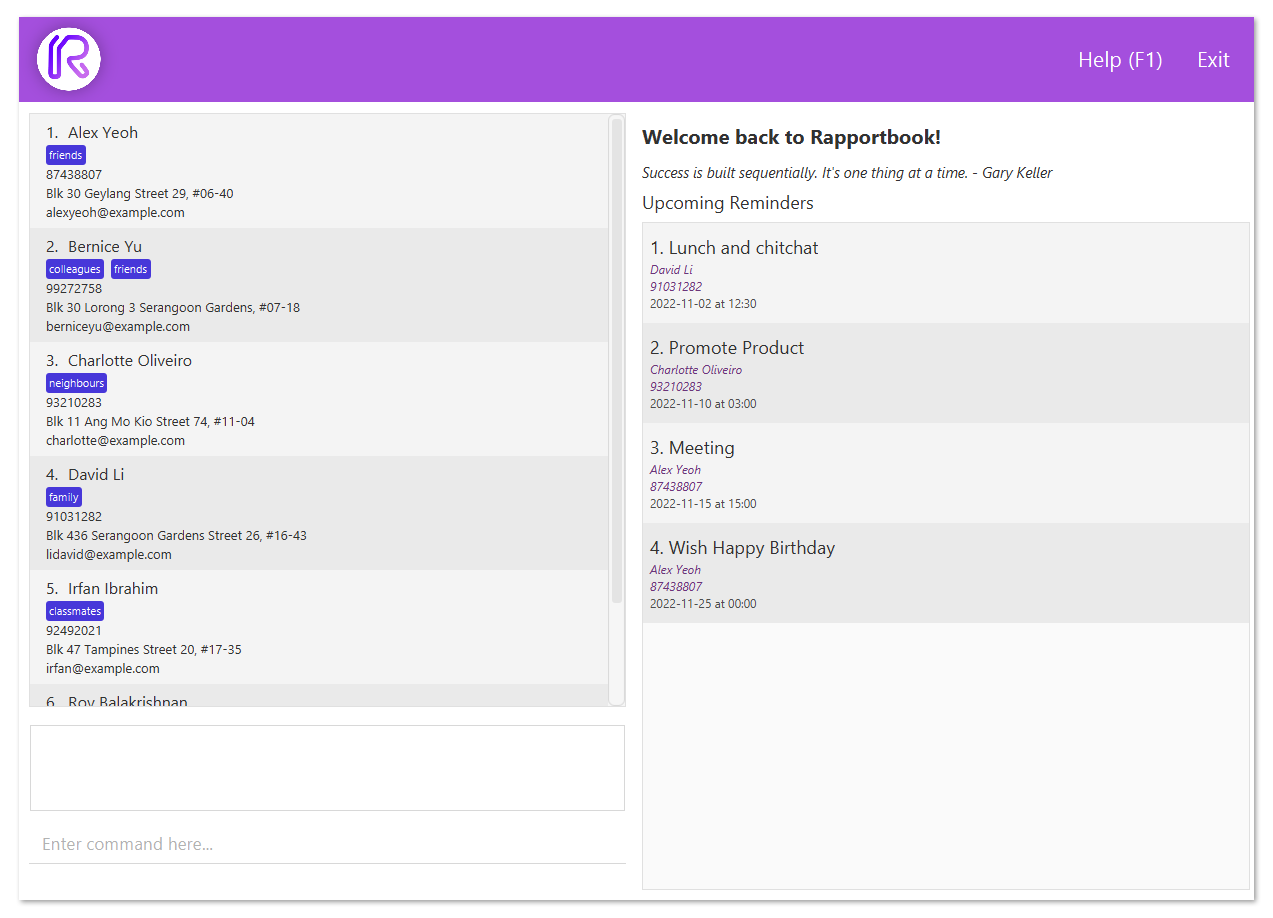
Double-click the file to start the app. You should see a GUI similar to the screenshot below appear in a few seconds. Since it is your first time launching the app, Rapportbook will automatically be populated with sample data for you to test its features out.
-
Refer to the Features below for details of each command.
The GUI
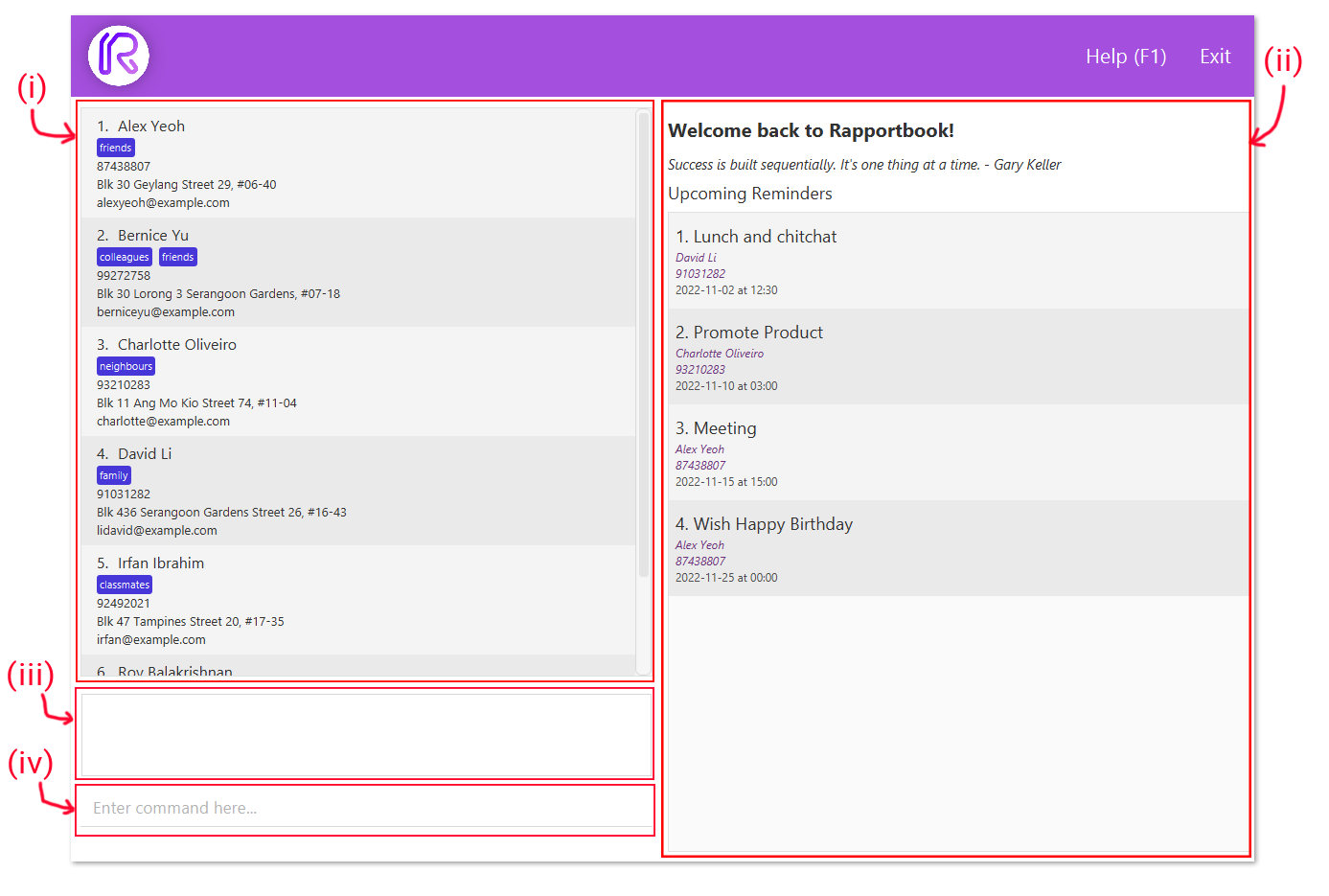
Here are the brief descriptions of each section of the GUI.
-
i: Your list of clients. This will update when you make changes to your list of client information, or filter based on clients’ names or tags.
-
ii: Home screen. This home screen will be changed if you view the details of a client, or display all your message templates with
message list. -
iii: Command output. Any command that you executed will have feedback displayed in here.
-
iv: Command input field. This is where you type your commands.
Features
 Notes about the command format:
-
Words in
UPPER_CASEare the parameters to be supplied by the user.
e.g. inadd n=NAME,NAMEis a parameter which can be used asadd n=Homer. -
Items in square brackets are optional.
e.gtag create TAG1 [TAG2]can be used astag create potentialor astag create potential highPriority. -
Parameters can be in any order.
e.g. if the command specifiesn=NAME p=PHONE_NUMBER,p=PHONE_NUMBER n=NAMEis also acceptable. -
If a parameter is expected only once in the command but you specified it multiple times, only the last occurrence of the parameter will be taken.
e.g. if you specifyp=12341234 p=56785678, onlyp=56785678will be taken. -
Extraneous parameters for commands that do not take in parameters (such as
help,list,exitandclear) will be ignored.
e.g. if the command specifieshelp 123, it will be interpreted ashelp.
Viewing help : help
Shows a message explaning how to access the help page. Can also be acessed with the F1 hotkey.

Format: help
You can then either click on the link to open it in your default browser, or click on the Copy URL button to copy the link to your clipboard.
Adding a client : add
Adds the information of a client to Rapportbook.
Format: add n=NAME p=PHONE_NUMBER e=EMAIL a=ADDRESS [r=REMARKS] [t=TAG]
 Recap:
Fields in square brackets
[] (i.e. [r=REMARKS]) is an optional field.
Examples:
add n=Bob p=95788172 e=bob@gmail.com a=Jurong East Jejantas r=Janitoradd n=Laufey p=98980184 e=laufey@u.nus.edu a=123,Clementi t=friendadd n=Laufey p=98980184 e=laufey@u.nus.edu a=123,Clementi
Deleting of a client : delete
Deletes a client within Rapportbook.
- Deletes the client at the specified
INDEX, the number shown in the displayed client list.
Format: delete INDEX
Example:
delete 1
Viewing of client information : show
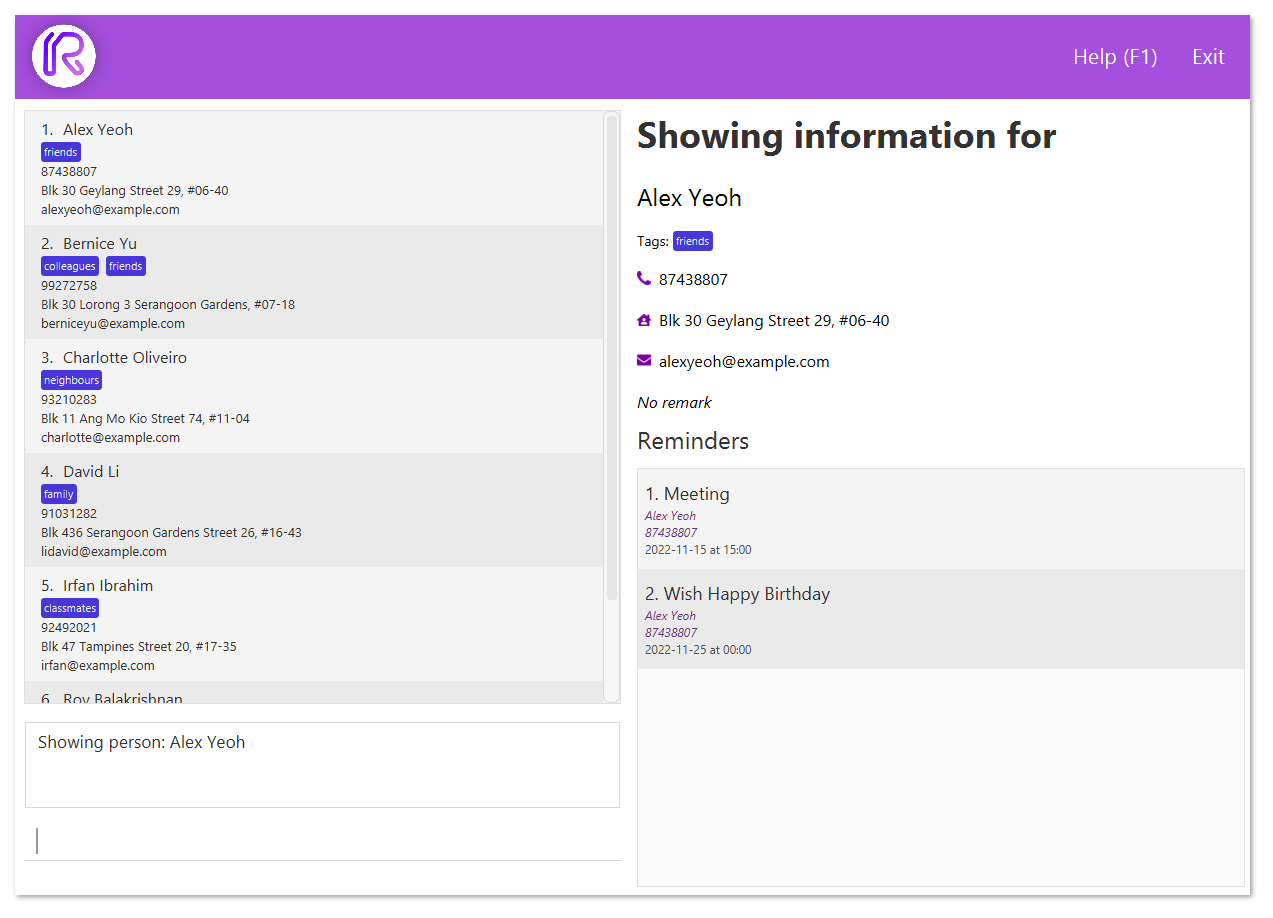
Displays information of a client at the specified INDEX in a separate panel. This feature allows faster modification to the client information as other commands such as edit, tag and reminder do not have to specify an INDEX.
Format: show INDEX
Example:
show 1
Editing of client information : edit
Edits the information of a client within Rapportbook.
- Edits the client at the specified
INDEX, the number shown in the displayed client list. - The index can be left out if the client to edit is the target client from the show command.
Format: edit [INDEX] [n=NAME] [p=PHONE] [e=EMAIL] [a=ADDRESS] [r=REMARKS] [t=TAG]
- Edits the person at the specified
INDEX. The index refers to the index number shown in the displayed person list. The index must be a positive integer (i.e. 1, 2, 3, …) - At least one of the optional fields must be provided.
- Existing values will be updated to the input values.
 Caution:
If you choose to edit the tag, note that all tags the client had previously will be replaced.
Examples:
-
edit 1 n=Laufey p=0162626003 r=Bluebirds in the springEdits the first client entry to have the nameLaufey, have the phone number0162626003and have the remarksBluebirds in the spring. -
edit 2 n=Homer e=homer@simp.com a=742 Evergreen TerraceEdits the second client entry to have the nameHomer, have the email addresshomer@simp.comand sets the address to742 Evergreen Terrace.
Creating a tag : tag create
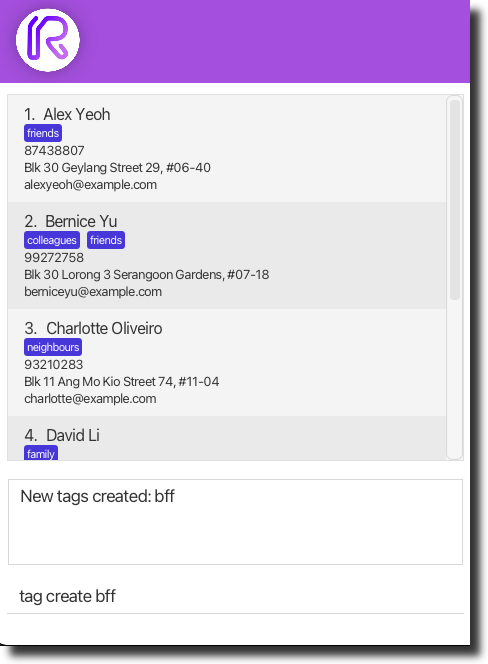
Creates a tag to categorise client entries. Creation of a tag must happen first before the usage of tags.
Format: tag create TAG [TAG2] [TAG3] … [TAGN]
Tip:
You can create multiple tags at once by just separating the different tag names with spaces.
Examples:
-
tag create potentialCreates a tag calledpotential -
tag create potential highPriority lowPriorityCreates 3 tags calledpotential,highPriorityandlowPriority.
Tagging clients : tag
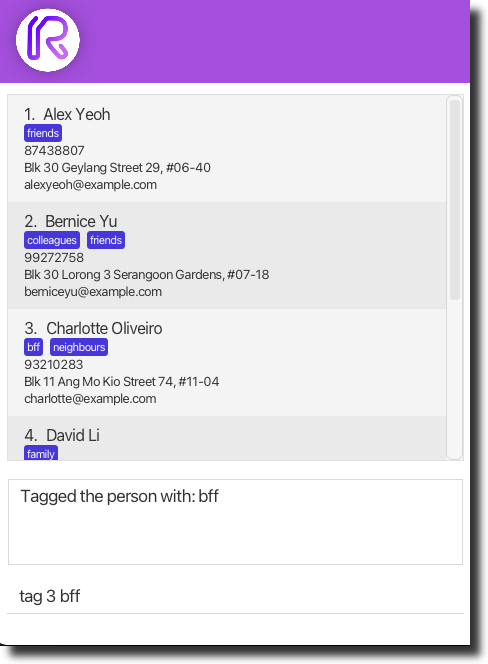
Tags a client entry for categorising purposes.
- Tags the client at the specified
INDEX, the number shown in the displayed client list. - The index can be left out if the client to tag is the target client from the show command.
- The tag name must be specified.
Format: tag [INDEX] TAG [TAG2] [TAG3] … [TAGN]
Tip:
You can assign multiple tags to a client at once by separating the different tag names with spaces after the client index.
Examples:
-
tag 5 potentialAssigns thepotentialtag to the client entry at index 5. -
tag 5 potential highPriorityAssigns thepotentialandhighPrioritytags to the client entry at index 5.
Listing tags : tag list
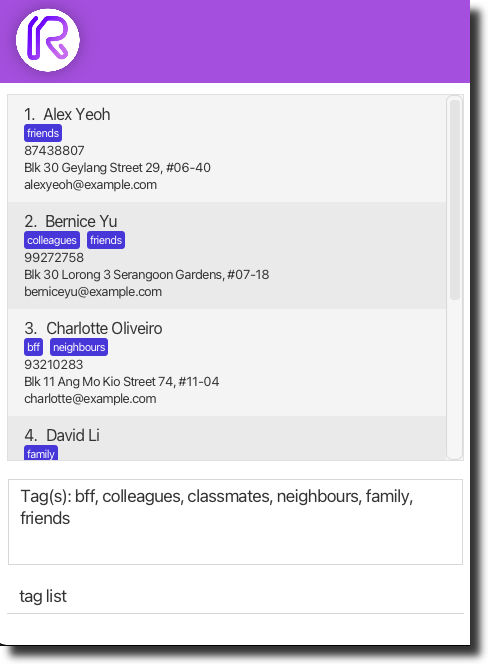
View all available tags.
Format: tag list
Removing tags from a client : tag remove
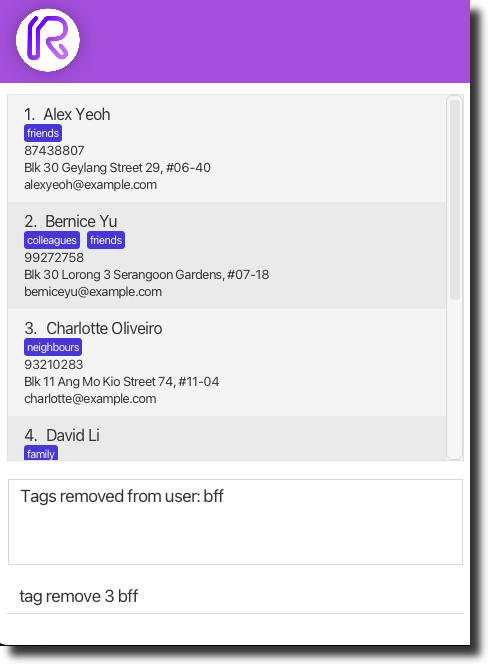
Removes tag(s) from a client entry if required.
Format: tag remove [INDEX] TAG [TAG2] [TAG3] … [TAGN]
Tip:
Like assignment of tags, you can also remove multiple tags from a client at once by separating the different tag names with spaces after the client index.
Examples:
-
tag remove 5 potentialRemoves thepotentialtag from the client entry at index 5. -
tag remove 5 potential highPriorityRemoves thepotentialandhighPrioritytags from the client entry at index 5.
Deleting tags : tag delete
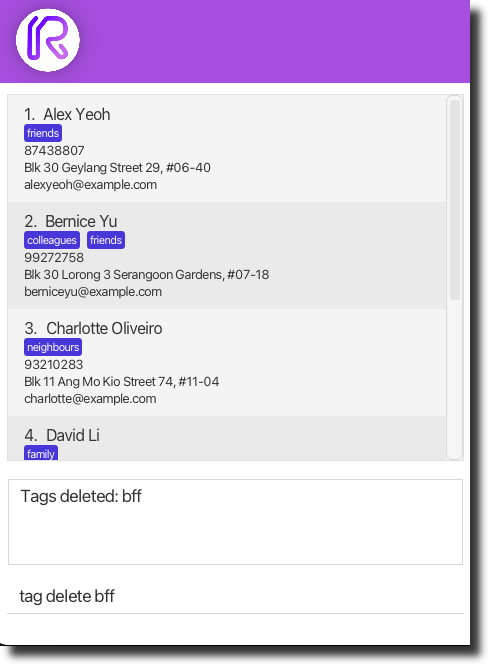
Deletes tag(s) from the address book.
Format: tag delete TAG [TAG2] [TAG3] … [TAGN]
Tip: Again, you can delete multiple tags.
Example:
-
tag delete potentialDeletes thepotentialtag from the address book. -
tag delete potential highPriorityDeletes thepotentialandhighPrioritytags from address book.
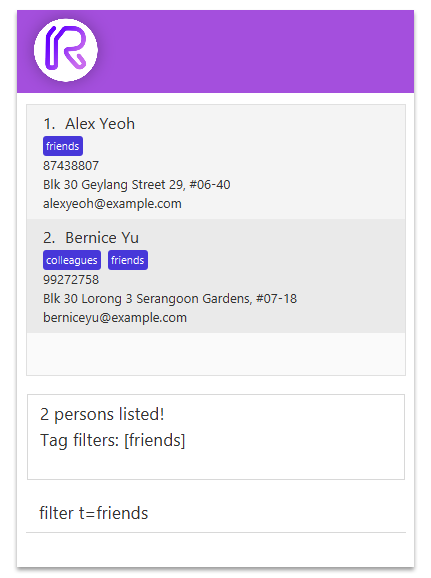
Filtering client entries : filter
Filter clients by their name or the tags assigned to client entries.
Format: filter [n=NAME] [t=TAG]
- The name search is case-insensitive. (e.g
n=laufeywill matchLaufey) - Multiple names or tags can be searched by separating the different names/tags with commas (i.e.
n=homer,laufeyto search for bothhomerandlaufey) - Search results will fulfill both of the search parameters. (e.g. searching
n=homer,laufey t=potential,highPriroritywill bring up client entries with nameshomerorlaufey, with tagspotentialorhighPrirority)
Examples:
-
filter n=LaufeyShows clients withLaufeyas name. -
filter n=Homer,LaufeyShows all clients withHomerorLaufeyas name. -
filter t=highPriorityShows clients with thehighPrioritytag. -
filter t=highPriority,potentialShows all clients with thehighPrioritytag orpotentialtag. -
filter n=Homer t=potentialShows all clients with the nameHomerand thepotentialtag. -
filter n=Homer,Laufey t=potential,highPotentialShows all clients with names,HomerorLaufey, and with either thepotentialorhighPriroritytags.
Clearing filters : filter clear
Clear filters that are currently in effect.
Format: filter clear [n=NAME] [t=TAG]
Example:
-
filter clearClear ALL filters. -
filter clear t=potentialRemove thepotentialtag filter. -
filter clear n=homer,laufey t=potential,friendRemovehomerandlaufeyname filters and thepotentialandfriendtag filters.
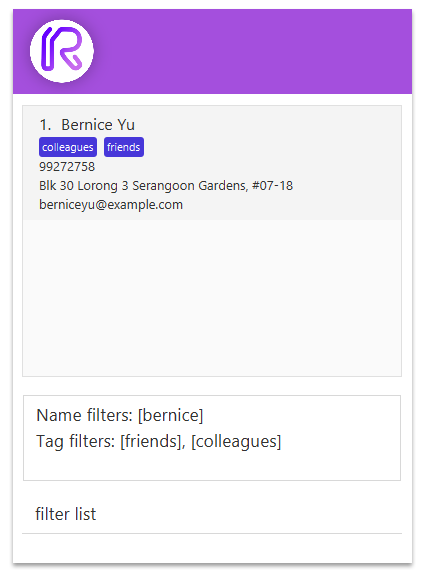
Lists the filter parameters : filter list
Shows the list of filters (name and tags) that are currently applied.
Format: filter list
Creating reminders : reminder
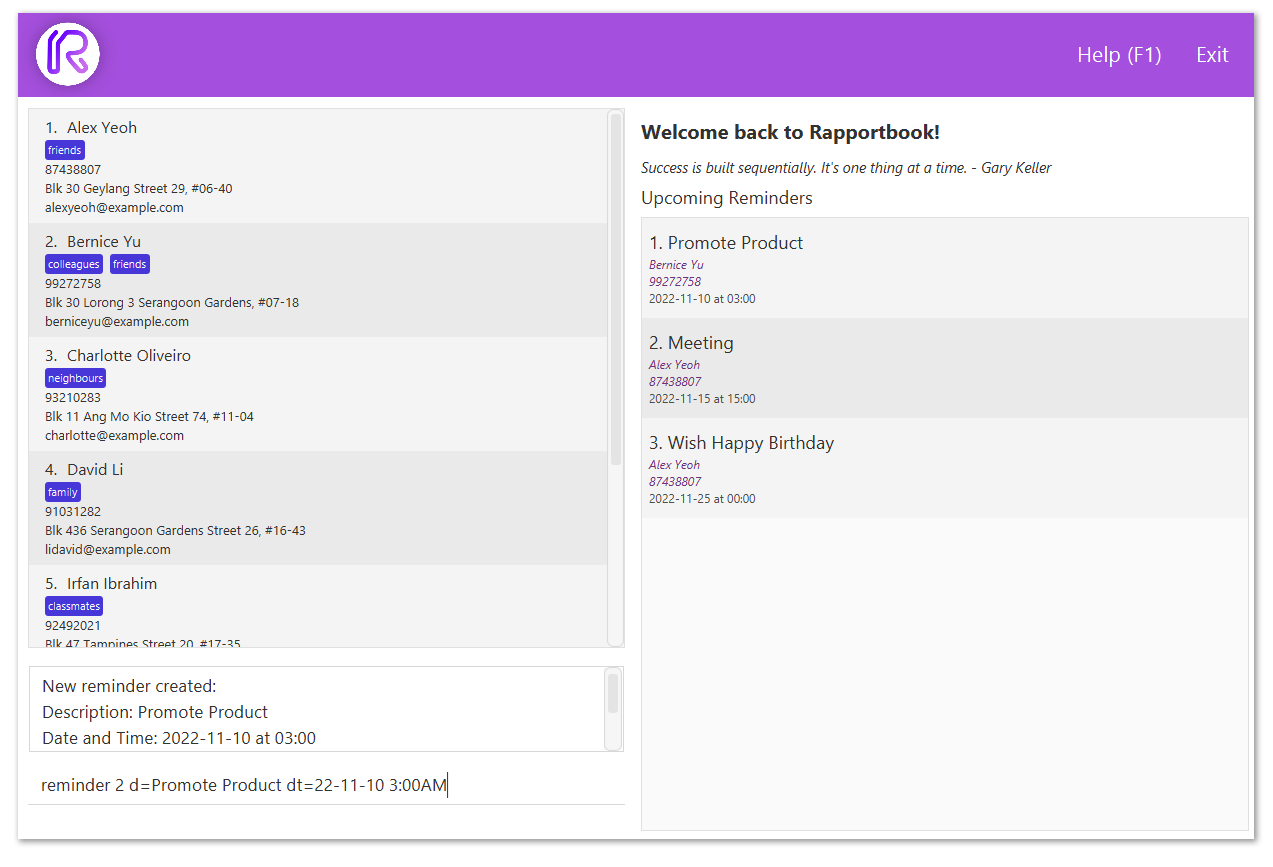
Creates a reminder for a specific client. The description, date and time of the reminder must be specified. The index can be left out if the reminder is meant for the target client from the show command.
Format: reminder [INDEX] d=description dt=YY-M-D H:m
Example:
-
reminder 5 d=Zoom meeting dt=22-11-20 11:00Creates a reminder for the client entry at index 5, with a description ofZoom meeting, a date of20 November 2022and time of11:00 AM.
Possible date time formats:
- Date of
20 November 2022and time of3:00 PMdt=2022-11-20 3:00PMdt=22-11-20 15:00dt=2022-Nov-20 3:00 PM
- Date of
8 November 2022and time of12:00 AMdt=22-11-8 0:00dt=2022-11-8 12:00AMdt=22-nov-08 00:00
Deleting reminders : reminder delete
Deletes a reminder from the displayed reminder list using the reminder index.
Format: reminder delete INDEX
Example:
-
reminder delete 3deletes a reminder at index 3 of the reminder list on display.
Tip:
Clear reminders only for a specific client by using show INDEX then reminder clear.
Clearing reminders : reminder clear
Clears all reminders from the displayed reminder list.
Format: reminder clear
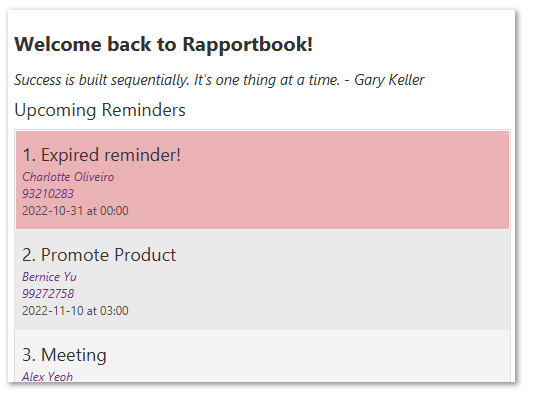
Do take note that expired reminders will be marked as red and will not be automatically deleted
You will have to delete them manually.
Creating a message template : message create
Creates a message template, which can then be used to generate personalized messages for clients.
Format: message create MESSAGE
Tip:
All instances of {name} will be replaced with the client’s name.
Examples:
message create Hello {name}, would you like to meet up with me for coffee tomorrow?message create Long time no see {name}! I have something exciting to share with you!
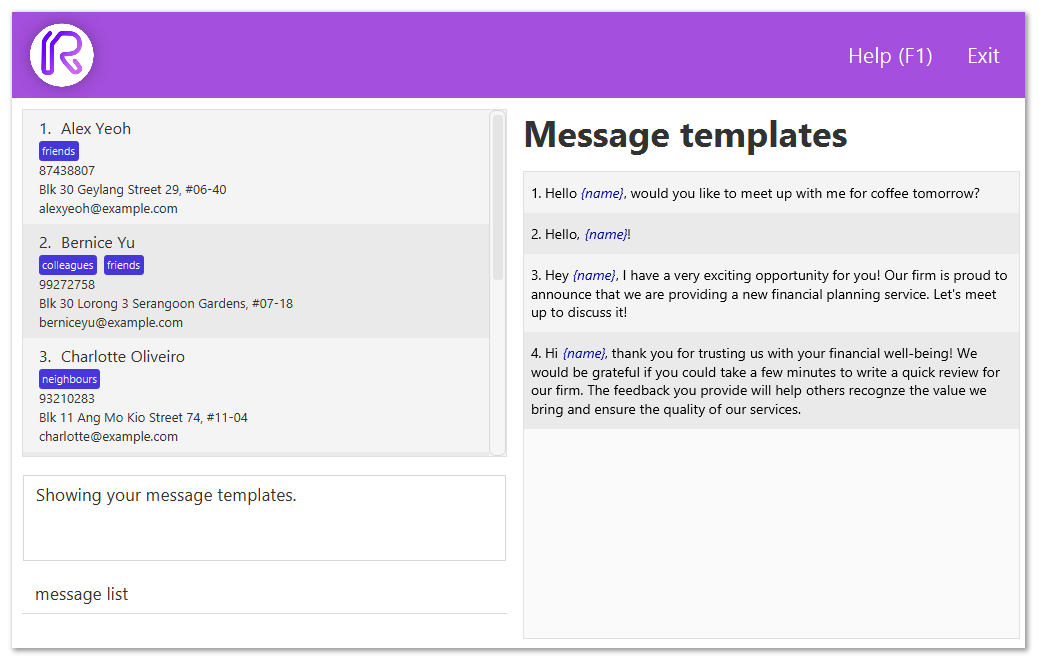
Listing message templates : message list
Lists your message templates.
Format: message list
Generating a message from template : message generate
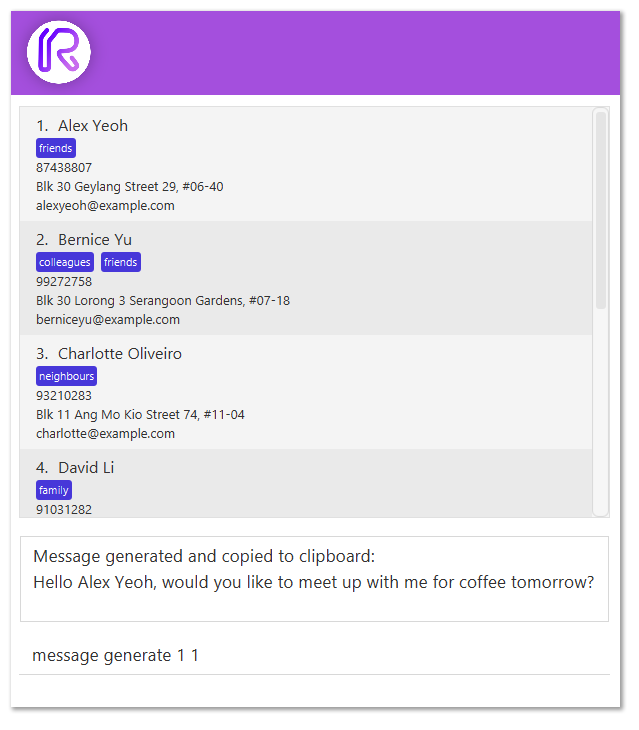
Generates a message using the message template and the person’s name.
- All instances of
{name}in the message template will be replaced with the person’s name. - The person and message indicated by
PERSON_INDEXandMESSAGE_INDEXmust exist.
Format: message generate PERSON_INDEX MESSAGE_INDEX
Example:
-
message generate 1 4Generates a personalized message for the 1st client using the 4th message template
Deleting message templates : message delete
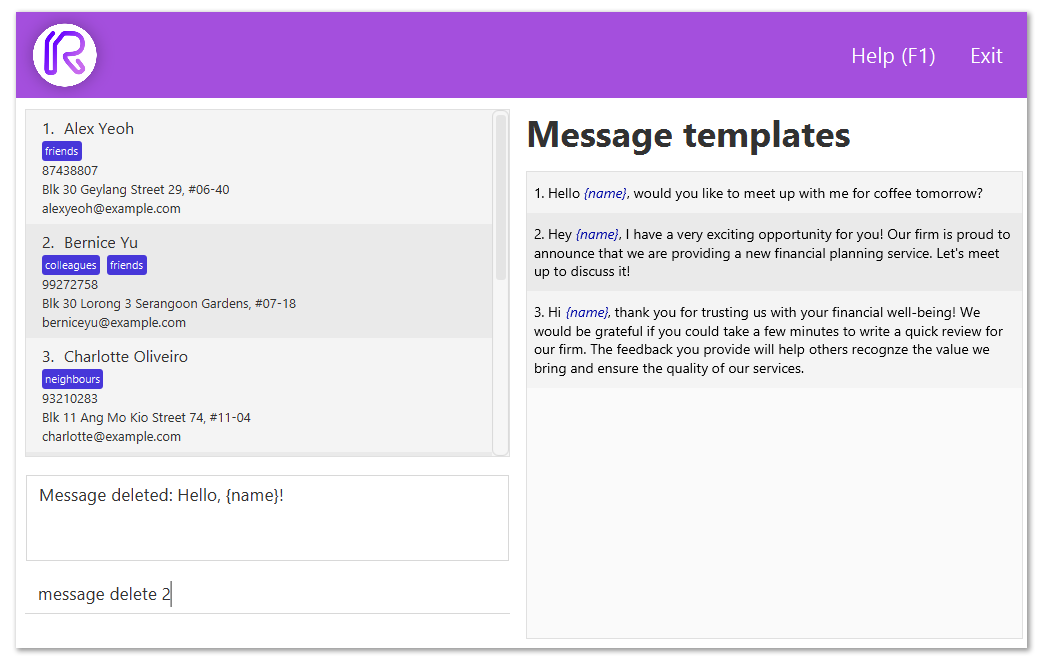
Delete a message template
Format: message delete INDEX
Example:
message delete 1
Return home : home
Resets the view back to the homepage, where quote of the day and all reminders will be shown.
Format: home
Exiting the program : exit
Exits the program.
Format: exit
Saving the data
Rapportbook data is saved in the hard disk automatically after any command that changes the data. There is no need to save manually.
Editing the data file
Rapportbook data is saved as a JSON file [JAR file location]/data/rapportbook.json. Advanced users are welcome to update data directly by editing that data file.
Caution:
If your changes to the data file makes its format invalid, Rapportbook will discard all data and start with an empty data file at the next run.
Command aliases
Frequently used commands have aliases that are short so that you can perform actions quickly.
| Action | Command | Alias |
|---|---|---|
| Home | home |
h |
| Show | show |
s |
| Add | add |
a |
| Delete | delete |
d |
| Edit | edit |
e |
| Tag | tag |
t |
| Tag creation | tag create |
t c |
| Tag list | tag list |
t l |
| Untag | tag remove |
t r |
| Tag deletion | tag delete |
t d |
| Filter | filter |
f |
| Filter clear | filter clear |
f c |
| Filter list | filter list |
f l |
| Reminder creation | reminder |
r |
| Reminder deletion | reminder delete |
r d |
| Reminder clear | reminder clear |
r c |
| Message creation | message create |
m c |
| Message list | message list |
m l |
| Message generation | message generate |
m g |
| Message deletion | message delete |
m d |
FAQ
Q: How do I transfer my data to another Computer?
A: Install the app in the other computer and overwrite the empty data file it creates with the file that contains the data of your previous Rapportbook home folder.
Command summary
| Action | Format |
|---|---|
| Home | home |
| Show | show INDEX |
| Add | add n=NAME p=PHONE e=EMAIL a=ADDRESS [r=REMARKS] [t=TAGS] |
| Delete | delete INDEX |
| Edit | edit [INDEX] [n=NAME] [p=PHONE] [e=EMAIL] [a=ADDRESS] [r=REMARKS] |
| Tag | tag [INDEX] TAG |
| Tag creation | tag create TAG1 [TAG2] … [TAGN] |
| Tag list | tag list |
| Untag | tag remove [INDEX] TAG1 [TAG2] … [TAGN] |
| Tag deletion | tag delete TAG1 [TAG2] … [TAGN] |
| Filter |
filter n=NAME1,[NAME2],…,[NAMEN] [t=TAG1,[TAG2],…,[TAGN]]filter [n=NAME1,[NAME2],…,[NAMEN]] t=TAG1,[TAG2],…,[TAGN]
|
| Filter clear | filter clear [n=NAME1,[NAME2],…,[NAMEN]] [t=TAG1,[TAG2],…,[TAGN]] |
| Filter list | filter list |
| Reminder creation | reminder [INDEX] d=DESCRIPTION dt=YY-M-D H:m |
| Reminder deletion |
reminder delete INDEX |
| Reminder clear | reminder clear |
| Message creation | message create MESSAGE |
| Message list | message list |
| Message generation | message generate PERSON_INDEX MESSAGE_INDEX |
| Message deletion | message delete INDEX |
| Help | help |
| Exit | exit |